ADS

Showing posts with label Install. Show all posts

Sunday, 3 July 2011

How to install PHP in Ubuntu

install php on ubuntu 10.04 lucid lynx
PHP(Hypertext Preprocessor) is a server side script language and it is very useful in making dynamic websites by connecting through database(e.g MySQL).It is open source and free.You can install it on Ubuntu 10.04 or any other distribution of linux in many ways e.g by using Synaptic Package Manager or Install it manually after downloading it from it’s website.PHP comes in many packages and modules,so it depends on your work.In general there is a software called LAMP(For Linux),contains all the combination required for web designing.L stands for Linux,A for Apache,M for MySQL and P for PHP.If you have installed other softwares,then correct php modules you can install it by the following method.

Install PHP on Ubuntu 10.04 Lucid Lynx

Using Command Line/Terminal

Just Type the following command at ubuntu terminal(Hit CTRL+ALT+T to open terminal) and enter the login password.
$ sudo apt-get install php5 libapache2-mod-php5

Using Synaptic Package Manager

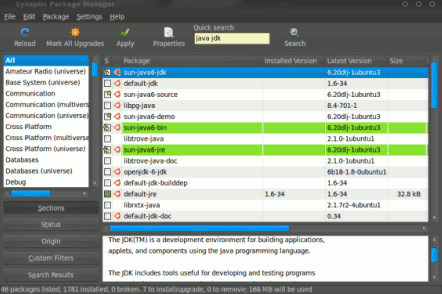
1.Go to Synaptic Package Manager and search for php.
2.Check the boxes corresponding to the package/module you want to install.
3.Click on Apply to begin the download.It will take few minutes to complete.
4.After completion of download,installation will begin automatically and hardly takes a minutes.(You may have to provide extra details e.g if you want to connect it through MySQL database).
5.That’s All.

How to install Java(JDK) in Ubuntu

install jdk on ubuntu 10.04
JAVA is now the most widely used programming language for creating applications for web,gadgets,business…So you may want to install JRE(Java Runtime Environment) on your ubuntu 10.04 LTS for compiling and running JAVA based application.
Installing JDK through Command Line in Ubuntu 10.04
Use the following command to install JDK(Java Developement Kit) 6 on your Ubuntu 10.04 LTS
sudo apt-get install openjdk-6-jdk
It will automatically install other dependencies.

Install JAVA(JDK-JRE) from SPM(Synaptic Package Manager) in Ubuntu 10.04

First,search for JDK/java and select the package openjdk-6-jdk by marking for installation.It will ask you to mark some extra dependent softwares for installation,just click ok.Then click on Apply to start the download and installation process.Wait for few minutes until the downloading process will complete and installation will begin.JDK will be installed within few moments.In middle of the installation it will ask you to accept license terms for JRE,check the box to accept the license terms.You are now ready to use Java Development Kit(JDK) for creating java applications.

How to install virtualbox on ubuntu

install virtualbox in ubuntu
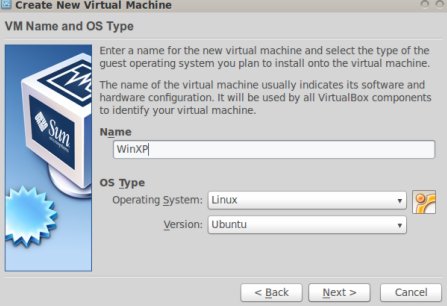
VirtualBox is a powerful and free virtualization software for home and enterprise use.VirtualBox is a high performance application with a lot of features and available without any cost as open source software.It is a cross-platform application and runs on Linux,windows,OpenSolaris,MAC and supports a large number of guest operating system.
virtual-box on ubuntu 10.04
Some important guest operating systems are listed below-
  • Ubuntu 7.10/8.04/8.10/9.04/9.10/10.04
  • Debian 5.0/4.0
  • OpenSUSE 10.0/10.3/11.0/11.1
  • Mandriva 9.2/10.1
  • Fedora 7/8/9/10/11
  • Red Hat Linux 7/9
  • OpenSolaris
  • FreeBSD
  • MacOSX
  • Windows 7(32/64-bit)
  • Windows Vista(32/64-bit)
  • Windows XP(32/64-bit)
Full list of supported guest OS

Install VirtualBox in Ubuntu 10.04(Lucid Lynx)/9.10

#1. Open Synaptic Package Manager and search for “virtualbox”.
#2. Then,you can select/mark the packages you want to install.Mark the row which says virtualbox-ose and click on ok when it asks to install additional packages(dependencies).By default virtual-box will install qt based graphical interface;if you want GTK based Graphical interface then mark it.
#3. Next,click on Apply to install the marked packages.Then wait(Few Minutes) until the installation will complete.
#4. Now,you have installed the virtual Box successfully on your Ubuntu computer.To use virtualbox go to Applications->Accessories->VirtualBox OSE.

How to install backup software for Ubuntu

Backup solutions for Ubuntu users
Backup is very useful in any event related to data loss or in disaster recovery.So this post is aimed to introduce you with a great backup software “Simple backup Config” which contains necessary backup daemon software and GNOME GUI on Ubuntu 10.04.
simple backup config for ubuntu 10.04
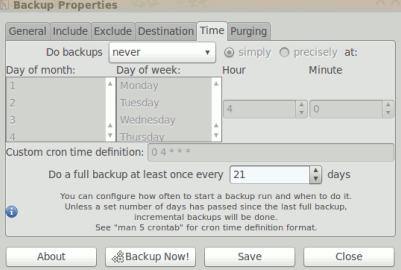
Simple Backup Config : backup tool for ubuntu 10.04
It is a powerful,free and open source tool for backup in ubuntu 10.04 and for some other Linux based system.This was developed in 2005 by Google Summer of Code program.It has simple and easy to use graphical interface.You can easily schedule regular backup so simple backup config is a recommended software for desktop users.You can install it very easily within few clicks from Ubuntu software center or Synaptic Package Manager.
How to install Simple Backup Config on Ubuntu 10.04
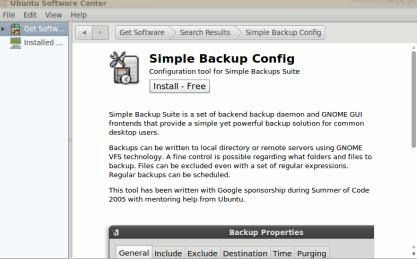
1. Open Ubuntu Software Center(Applications->) and search for “backup“(excluding double quote).
installing simple backup config on ubuntu 10.04
2. Now click on Install-Free.
3. Installation will begin automatically after when the downloading process will finish ..and it will hardly take few minutes.
4.That’s All..installation is completed…(You can also use Synaptic Package Manager to install simple backup config; first mark the box corresponding to the software and then click on apply to install).You can access it from System->Administration->Simple Backup Config.

How to install apache in ubuntu

What is Apache??

Apache HTTP Server i.e apache is a cross-platform open source(Under Apache License) web server software.Apache is written in C language.Apache is the most popular web server used(share on the web is more than 66%) for serving both static and dynamic web pages;as well as the features and functions that is required for most of the web applications.Apache supports a lot of features out of which some implemented in the form of compiled modules for extending the core functionality.A lot of server side programming languages is used with apache – Perl,PHP,Python,Tcl.Other security related features includes SSL(Secure Socket Layer),TLS(Transport Layer  Security).The aim of this post is to explain you about installing apache web server on ubuntu 10.04 lucid lynx.

How to install gyachi on ubuntu

Gyachi for Ubuntu 10.04 Lucid Lynx
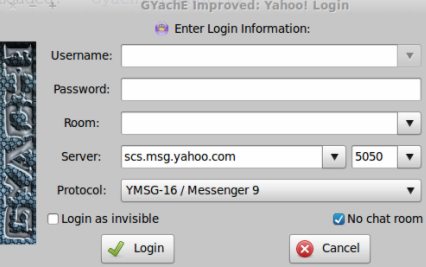
Gyachi application is a fork from Gyach Enhanced yahoo Client for Linux based operating system.Gyachi is based on yahoo instant messenger protocol.Gyachi’s user interface is based on GTK+ version-2 and it’s aim is to provide all the features that is available in windows yahoo messenger client.It has a lot of features like Voice-chat,nicknames,webcams,avatars,images and many more.
install gyachi-yahoo client for linux |ubuntu 10.04

How to Install Opera 11.50 for Ubuntu

Tags: Ubuntu, Opera, Install, How to, Howto.

Opera is one of the most popular web browser on this planet. The mobile version is prbably the best browser for small devices such as Mobile Phones and desktop version is also popular due to some exciting features such as Live Speed Dialing. Opera seems to be optimized for faster web browsing with next generation browsing experience. The latest version of opera i.e 11.5 has released (today).
Opera 11.50 or swordfish (code name) is available for Windows, Mac and Linux distributions such as Linux Mint or Fedora or Ubuntu 11.04 (Natty Narwhal)/10.10 (Maverick Meerkat)/10.04 (Lucid Lynx), it’s a cross-platform browser.

How to Install Firefox 5 for Ubuntu 11.04/10.10

Tags: Ubuntu, Firefox, Install, Howto, how to.

Mozilla Firefox (One of the most popular open source web browser) has just (yesterday!) released its next stable version – Firefox 5 with some new features and improvements. The version 5.0 is available for Linux, Mac , Windows and Android operating system. Now, Firefox has very high release frequency, probably due to the fact that – they want to deliver all the innovative features quickly to the users, new version has arrived with a of performance tweaks and enhancements.

How to install Instantbird on ubuntu 11.04/10.10

Tags: Ubuntu, Instantbird, Install, Howto, How to.

Instantbird, the next generation Instant Messenger application, is now available to download and use. Instantbird has a lot of new exciting features, and so you must give it a try – anyway it’s free and open source! Instantbird focuses on simplicity and efficiency of the user interface. Instantbird is highly customizable and extensible i.e it provides a lot of options which allow you to configure/customize the application as you want. e.g you can change the color of a particular buddy, just in a click.

How to install Ruby on Rails in ubuntu

Tags: Install, Ruby on Rails, Ubuntu, Howto, How to.

‘Ruby on Rails’  (ROR) is one of the most popular and productive open source framework that allows you to develop web applications very quickly with a lot of fun.

How to install Eclipse IDE on Ubuntu

Tags: Ubuntu, Eclipse, IDE, Install, Howto, How to.

Nowadays, IDE i.e Integrated Development Environment is used by most of the Programmers and software developers, as it provides sophisticated software development environment; features like – auto code completion, easy testing and debugging, syntax coloring, framework integration etc.

So IDE creates a layer of abstraction, that is certainly helpful for production environment, but may not be good for novice programmers (due to abstraction layer created by IDE, they might lack some background concepts).

There are a number of IDEs available in the Market, but few open source IDE like Eclipse and NetBeans are the most popular. Eclipse IDE is a multi-language software development environment, written in java and available for all platforms like Linux based OS, e.g Ubuntu 11.04 (Natty Narwhal), Debian, Linux Mint, etc, Windows and Mac OS X. Eclipse is a free and open source software (Available under Eclipse Public License, very close to GPL), developed by FOSS community.
Eclipse is the most popular IDE among the Java developers. Eclipse architecture is very flexible and modular, so eclipse is well suited not only for Java programming (with JDT (Java Development Tools) ), but also for C/C++, with CDT (C/C++ Development Tools) components. Most of the frameworks and environments are well suitable with Eclipse; functionality can be easily added with plugins. On Ubuntu 11.04, you can use synaptic package manager or Ubuntu software center or shell to install eclipse in few clicks.

Installing Eclipse IDE on Ubuntu 11.04

Install Eclipse IDE from Ubuntu Software

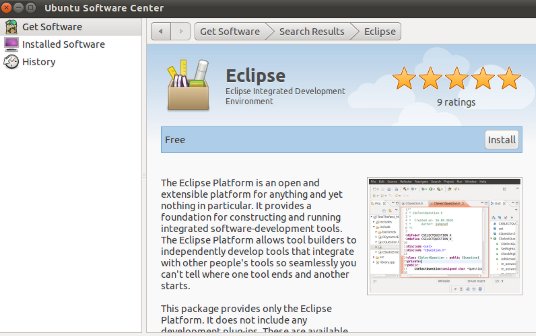
#1 : Go to main menu (Top Left Corner) and search for ‘ubuntu software center’ or just open it from left econ bar.

#2 : Now, search for ‘eclipse’ in quick search bar.
installing eclipse ide on ubuntu 11.04

#3 : Click on more info (if you want to know more(like Ratings, reviews) before installing, generally recommended), then click on install to begin (You may have to enter your login password), wait until the installation is complete.

#4 : That’s all..you can access it from the main menu (just type ‘eclipse’).

Download and install
Get eclipse from its official website and extract it to any directory (say ‘home’) and make it executable using chmod command, add a path variable (to access directly) if required.
Download Eclipse IDE
Then extract it to the directory ‘/home/your_username’ and make the eclipse.sh file executable using the command-
sudo chmod +x eclipse.sh
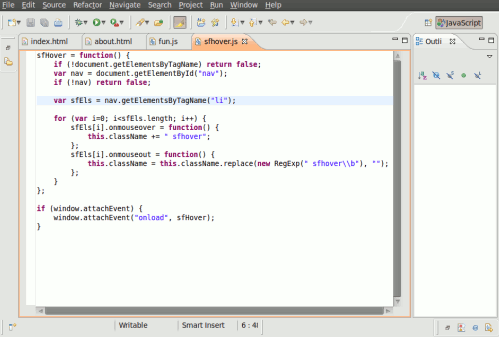
Eclipse IDE on Ubuntu 11.04

How to install Adobe Flash Player in Ubuntu

Tags: Ubuntu, Install, Adobe, Flash.

Ubuntu 11.04 (alias : Natty Narwhal ) has got new Desktop – Unity ; Although you can switch to classic GNOME Desktop from the login menu, if you want (for any reason – may be you don’t like the Unity desktop or your computer doesn’t support the 3D effects in unity), but it’s not recommended, give it a try you might like it.
All other features are almost same, so as usual – Ubuntu 11.04 doesn’t include some basics softwares and libraries by default, due to licensing problem (just relax you don’t have to worry about that). Ubuntu Software Center has ratings/reviews and comments, so it will be very helpful in choosing/installing applications. Banshee is the default media player and Firefox 4, the default Web Browser. The left icon bar , is pretty good for launching favorite apps quickly.
installing adobe flash player on ubuntu 11.04

That’s enough about Ubuntu 11.04! Let’s come to our point – how to install adobe flash player on Ubuntu 11.04, because you want to surf Internet (having more than 60% websites, with Flash content), and of-course a flash player is required. That’s where the adobe flash player comes in the mind , The best flash player available free of cost for all web browsers. it can play videos in youtube and flash games or any other flash content on the web. In upcoming few years, we may not need any flash player because of the new features of HTML 5.0 , but currently all browsers do not support it well, specially Firefox and Internet Explorer.

Installing Adobe Flash Player on Ubuntu 11.04

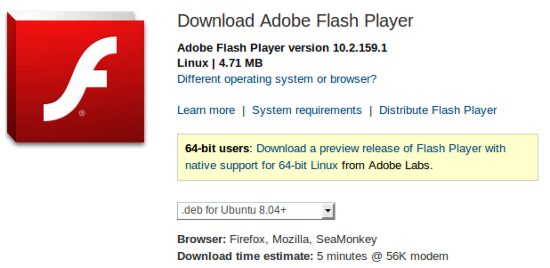
#1 : Download the *.deb (short for Debian) package for your system.
Download Adobe Flash for Ubuntu 11.04

#2 : Open the saved file with Ubuntu Software Center or use dpkg to install it from command line (Enter login password when prompted).
  sudo dpkg -i file_name.deb

#3 : That’s All ..Now restart the Firefox browser and enjoy videos and flash content over the web.

Alternative Way
Go to menu located in Top Left corner and search for ‘Ubuntu Software Center’. Now open Ubuntu Software Center and search for “adobe flash” and install it in a single click But above method is better if you want to install latest version or install it from synaptic package manager (don’t forget to click on reload button in the beginning itself, for latest information regarding the packages). The process is quite simple – search for ‘adobe flash’ and mark the box for installation which says – ‘Adobe Flash Plugin’ ;
Now click on Apply button to install the selected package(s).

How to install VLC in Linux Ubuntu

Tags: Install, VLC, Ubuntu, Linux, VideoLAN, VLC for Linux Ubuntu.

It is so easy to install VLC in Ubuntu. Just follow these steps.

With Ubuntu Maverick Meerkat 10.10 or/and higher.

Method 1: Graphical way
1. Open Synaptic application
2. Click on System -> Administration -> Synaptic Package Manager.
3. In Settings -> Repositories, make sure you have an universe repository activated.
4. Search for vlc and install it. You should install vlc-plugin-pulse and mozilla-plugin-vlc as well.
5. If you are interested in streaming or transcoding, you should additionnally install libavcodec-extra-52 from a multiverse repository.

Method 2: Command line way
You need to check that a universe mirror is listed in your /etc/apt/sources.list file.

% sudo apt-get update 
% sudo apt-get install vlc vlc-plugin-pulse mozilla-plugin-vlc

Ubuntu Lucid Lynx 10.04 LTS Command line way

% sudo add-apt-repository ppa:lucid-bleed/ppa 
% sudo apt-get update 
% sudo apt-get install vlc vlc-plugin-pulse mozilla-plugin-vlc

Any suggestion just post comments below post. Thank you.