Follow Android Tips via Email/Twitter to receive infrequent, but only the best tips.
ADS
Showing posts with label Android. Show all posts
Monday, 11 July 2011
Top 10 android setup tasks for a new android user
Kick start your shiny new android phone including the Droid family,
Evo 4G, Galaxy S or other Motorola, Samsung and HTC android phones.
Follow Android Tips via Email/Twitter to receive infrequent, but only the best tips.
How to import contacts into android phone
Export contacts from Outlook or Outlook Express (or any other application) to csv format and then import to gmail. That should do it for most users.
If you have your contacts on an old GSM phone, you could export them on to the SIM card and then import them to your new phone.
Thursday, 7 July 2011
Tips for the HTC Desire and other Android devices
20 really useful Android tips and tricks.
Android is a great little mobile operating system for the modern smartphone, but it can feel a little bewildering and complex to the newcomer.
Google's quest to make everyone feel at home by providing layer upon layer of option screens and hundreds of tweakable settings can leave people a little lost, plus there's your widgets to worry about, the Home screen layout and much more hidden beneath Google's green bonnet.
So here, to make things a little easier for Android newcomers and those seeking a few more power tips, we present 50 essential Android facts and techniques.
These tips are mostly for the 2.1 version of Android, which is by far the most common form of the OS out there today - but much of the advice will also work on older and newer versions and those boutique varieties skinned by some hardware makers.
1. Activate the Android Power Strip
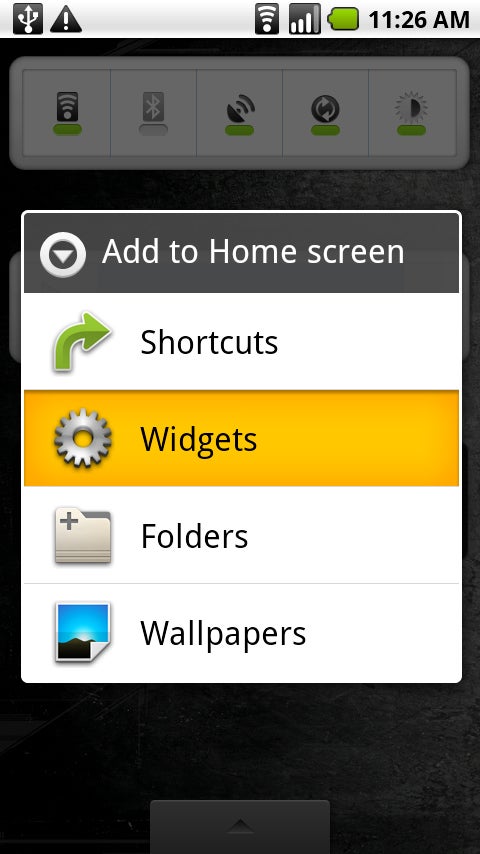
The single most important feature in Android 2.1 is its built-in power strip widget. Here, you're able to quickly disconnect all the phone's battery-destroying features, like Wi-Fi, Bluetooth and the Great Batter Killer that is GPS. Long-press on the screen and install it via the widgets category.

Android is a great little mobile operating system for the modern smartphone, but it can feel a little bewildering and complex to the newcomer.
Google's quest to make everyone feel at home by providing layer upon layer of option screens and hundreds of tweakable settings can leave people a little lost, plus there's your widgets to worry about, the Home screen layout and much more hidden beneath Google's green bonnet.
So here, to make things a little easier for Android newcomers and those seeking a few more power tips, we present 50 essential Android facts and techniques.
These tips are mostly for the 2.1 version of Android, which is by far the most common form of the OS out there today - but much of the advice will also work on older and newer versions and those boutique varieties skinned by some hardware makers.
1. Activate the Android Power Strip
The single most important feature in Android 2.1 is its built-in power strip widget. Here, you're able to quickly disconnect all the phone's battery-destroying features, like Wi-Fi, Bluetooth and the Great Batter Killer that is GPS. Long-press on the screen and install it via the widgets category.
Some Cool Adroid Tips and Tricks
Tips
- Visual cue for scrolling: When you are in a scrollable list (like your Gmail inbox) and you reach the end of the list it shows an orange hue—a visual cue that you can’t scroll anymore.
- Notification bar icons (Wi-Fi, network coverage bars, etc.): Turn green when you have an uninhibited connection to Google, white when you don't. Hint: if you're in a hotel or airport using Wi-Fi, the bars won't turn green until you launch the browser and get past the captive portal.
- Voice actions: Tell your phone what to do by pressing the microphone icon next to the search box on the home screen, or long press the magnifying glass. You can tell it to send an email or text message (“send text to mom, see you for pizza at 7”), call someone ("call mom"), navigate somewhere (“navigate to pizza”), or listen to music ("listen to Mamma Mia").
- Find things you’ve downloaded from your browser: Your downloads are now neatly collected in a Downloads manager, which you can find in the apps drawer.
- Turn a Gallery stack into a slideshow: In Gallery, when you are looking at a stack of photos, put two fingers on the stack and spread them. The stack spreads out and the pictures flow from one finger to the other, a moving slideshow that lets you see all of the photos.
- Walk, don’t drive: Once you’ve gotten directions within Google Maps, click on the walking person icon to get walking directions.
- Easy text copy/paste from a webpage: To copy/paste from a webpage, long press some text, drag the handles around to select the text you want to copy, and press somewhere in the highlighted region. To paste, simply long press a text entry box and select paste. Gmail is a bit different: you need to go to Menu > More > Select Text.
- Turn your phone into a Wi-Fi hotspot: Go to Settings > Wireless & Networks > Tethering & Portable Hotspot. (You may have to pay extra for this feature.)
- Look at Maps in 3D: With the latest release of Google Maps, you can now look at 3D maps. Tilt the map by sliding two fingers vertically up/down the screen, and rotate it by placing two fingers on the map and sliding in a circular motion, e.g., from 12 and 6 o’clock to 3 and 9.
- Cool shutdown effect: When you put the phone to sleep, you’ll see an animation that resembles an old cathode tube TV turning off.
Android Keyboard Shortcuts: All The Hotkeys You Need
So what are you waiting for? Bookmark this list and get to know Android in a whole new way.
(Note: Some hotkeys may vary from one Android device to another. Most of the ones listed here, however, should work on any Android handset.)
Android Keyboard Shortcuts: Scrolling
• Spacebar: Page down in any Web page/document view
• Shift + Spacebar: Page up in any Web page/document view
Android Keyboard Shortcuts: Typing
• Alt + Spacebar: Insert a special character• Shift + Del: Delete the character to the right of the cursor
• Alt + Del: Delete an entire line
• Shift + Shift (press it twice): Activate caps-lock; press shift once more to exit
• Alt + Trackball-Left: Move cursor to beginning of line
• Alt + Trackball-Right: Move cursor to end of line
• Alt + Trackball-Up: Move cursor to top of page
• Alt + Trackball-Down: Move cursor to bottom of page
• Shift + Trackball-Left/Right: Highlight text for cutting or copying
• Menu + X: Cut text (will cut all text on-screen unless specific characters are highlighted)
• Menu + C: Copy text to clipboard (will copy all text on-screen unless specific characters are highlighted)
• Menu + V: Paste text from clipboard
• Menu + A: Select all text in the current field
Android Keyboard Shortcuts: Browsing
• Menu + I: Zoom in• Menu + O: Zoom out
• Menu + J: Go back a page
• Menu + K: Go forward a page
• Menu + R: Refresh current page
• Menu + F: Find on page
• Menu + B: Open bookmarks
• Menu + S: Open social network sharing menu
• Menu + H: View browsing history
• Menu + S: Open browser settings
40 Tips and Tricks for Google Android
The first time you use an Android phone, one thing becomes immediately clear: You're not in Cupertino anymore.
Android, as recent Verizon commercials remind us, is the antithesis of Apple's celebrated handset: It's open source, fully customizable, and free from unexplained app rejections. If the iPhone is Apple's inalterable masterpiece, the Android platform is Google's open canvas. The palette is in your hands; it's up to you to add color.
We've assembled 40 tips and tricks to help you make the most of your Android phone. Some are specific to Android 2.0 or later, but most apply to any Android-based device. And not one of these tricks requires you to jailbreak anything.
So grab your phone, and get started--it's time for you to become a certified Android master.
2. Prefer not to be bothered by a sound every time an e-mail arrives? Head into Gmail's Settings menu and set its ringtone to Silent. You'll still see new-message alerts in the notification panel at the top of your screen, and you can always pull the panel down to get detailed information. You can configure text messaging and other alert-generating apps the same way.
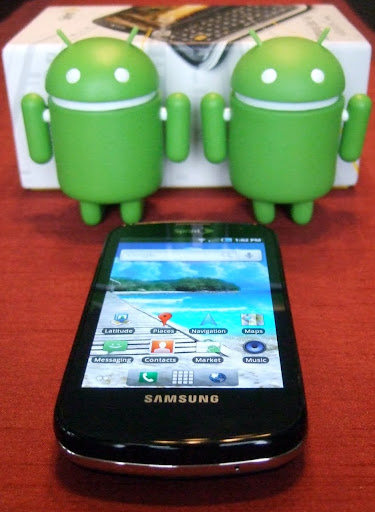
Android, as recent Verizon commercials remind us, is the antithesis of Apple's celebrated handset: It's open source, fully customizable, and free from unexplained app rejections. If the iPhone is Apple's inalterable masterpiece, the Android platform is Google's open canvas. The palette is in your hands; it's up to you to add color.
We've assembled 40 tips and tricks to help you make the most of your Android phone. Some are specific to Android 2.0 or later, but most apply to any Android-based device. And not one of these tricks requires you to jailbreak anything.
So grab your phone, and get started--it's time for you to become a certified Android master.
Optimize Your Home Screen
To add a widget, hold your finger on any open space, and then select 'Widgets' from the pop-up menu.1. Make the most of your space by using widgets--dynamic programs that operate right on your home screen. Simply hold your finger on any open space, and then select Widgets from the pop-up menu. Widgets come in a huge variety of sizes and functions, so search the Android Market to find what works for you.2. Prefer not to be bothered by a sound every time an e-mail arrives? Head into Gmail's Settings menu and set its ringtone to Silent. You'll still see new-message alerts in the notification panel at the top of your screen, and you can always pull the panel down to get detailed information. You can configure text messaging and other alert-generating apps the same way.
Subscribe to:
Posts (Atom)